Cues in both directions
Every station sends and receives. Address one Mac or the whole crew, with separate delivery and seen confirmations.
Cues between FOH, stage management and playback. A native Mac app on your own local network.
Free public alpha · 0.7.3
macOS 14+ · Apple Silicon & Intel
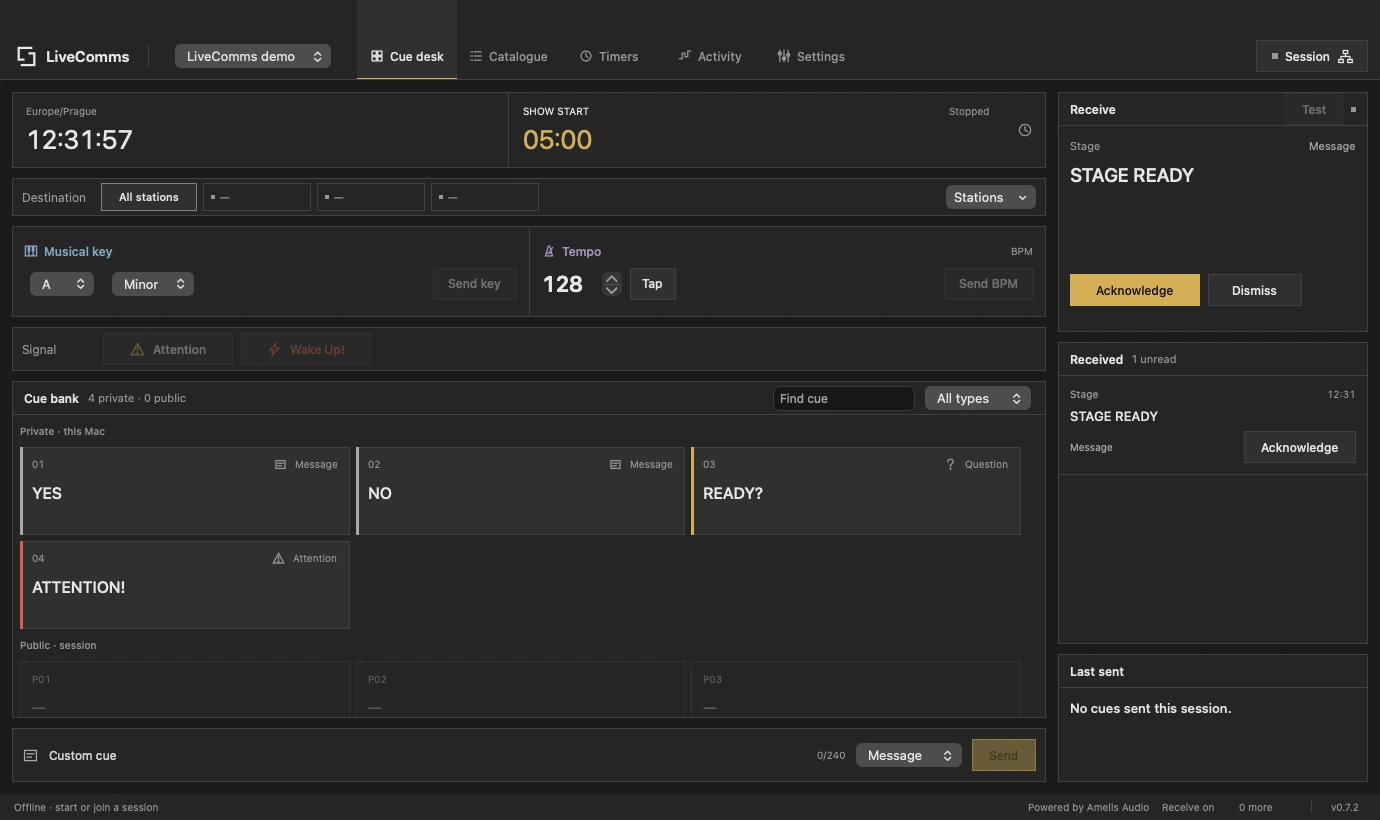
Keep cue delivery, acknowledgement and show timing visible across your local network.
Every station sends and receives. Address one Mac or the whole crew, with separate delivery and seen confirmations.
Incoming cues appear over your working app without taking keyboard focus or intercepting clicks.
Send musical keys, BPM, questions and custom cues from a fixed cue desk. Tap tempo is built in.
Keep personal cues on your Mac. The host approves additions and edits to the public bank.
Name each station and let the host assign location tags such as FOH, Stage Left or Playback. Names and assignments appear across the crew.
The host runs up to 12 named countdowns and elapsed timers. Each Mac chooses which timer to display, with its own world clock and optional clock overlay.
Create separate cue lists for different shows. Duplicate, reorder, search, import and export them; connected stations follow the host’s shared bank.
Check delivery and acknowledgement for each recipient, resend to the original destination and export the activity as CSV.
Use edge alerts for urgent cues. Each receiver controls brightness and can reduce flashing or disable the stronger strobe.
Received means the cue reached the app. Seen means a crew member acknowledged it.
Each sender has one live cue. The newest replaces their previous cue; cues from other stations remain visible alongside it.
LiveComms runs independently of Amelis. Use it alongside your console, playback or show-control software.
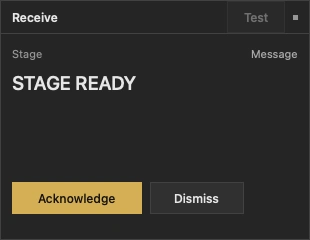
LiveComms demo · receive controls.
See who is connected and where they are working.
The host creates up to 16 locations and assigns one to each crew member in Settings → Crew. Use labels such as FOH, Monitors, Stage Left or Playback.
Everyone can change their own station name. The host can rename any connected station; names and location assignments update on every Mac.
The host remembers crew names, location definitions and assignments between launches. Station buttons keep their positions when a name changes or a Mac reconnects.
Choose an individual station for a directed cue, or address the whole crew. Each recipient has separate received and seen status.
Use the same current version on every Mac. No account or developer tools required.
Quit an older copy, open the DMG and drag LiveComms into Applications. Eject the image and open the installed app. Updating retains your shows and preferences.
Connect the Macs to the same local network. Open Session, name the host station and choose Start host. On the other Macs, choose Scan network and Join.
Match the verification number on both Macs, then approve the connection on the host. Choose a station or all stations and send a cue.
This free build is ad-hoc signed and has not been notarized by Apple. After attempting to open a trusted Amelis Audio download, macOS may require System Settings → Privacy & Security → Open Anyway. Managed Macs may require an administrator. Apple’s first-open guide.
Allow Local Network access when prompted. The host may also need permission for incoming firewall connections. If discovery is blocked, enter the host’s address and port. Guest Wi-Fi and client isolation can prevent communication; wired Ethernet is preferred.
Public alpha means LiveComms is available to everyone while we continue refining it with crew feedback. The core cue desk, crew management and shared clocks are available now. Updates bring improvements and new features.
No Amelis licence or account is required. Cue communications and shared clocks run over your local wired or wireless network. Internet is used for optional update checks and basic app analytics.
Cues and show content stay on your local network. Optional app analytics report version, Mac model, macOS, country and a random installation ID. From 0.7.3, reports also include completed-day host/join use, approximate connected time and cue send/receive counts. Reports are sent at most once a day while disconnected. Disable reporting in Settings to stop reporting and clear pending totals. No cue content, crew names or show files are sent. Read the privacy policy.
Choose LiveComms in the Amelis Audio support desk and describe the problem. Include your app and macOS versions, the affected stations and a screenshot or Activity CSV where useful. You receive a private ticket link for replies. No Customer ID or Amelis licence is required.
While disconnected from a session, choose LiveComms → Check for Updates. Installation requires confirmation. You can also replace the app using a newer DMG. Old ShowComms 0.6 installations need one manual LiveComms installation to enable updates.
Free crew communications for macOS.